When I built the dynamic app in the last post, I noticed that the database I couldn’t connect directly to was a WordPress one. Every Spacefast space has a WordPress instance sitting behind it. So for this video I wanted to work out what you can actually do with that, and it turns out there isn’t one answer, there are a few.
A quick warning first. The content feature I’m looking at is in private beta, so some of this will probably have changed by the time you try it – but a WordPress-integrated solution is coming.
This post is based on the YouTube video about WordPress and Spacefast integration embedded below (Don’t forget to like and subscribe etc!):
Pulling a Spacefast-hosted WordPress page into a static site
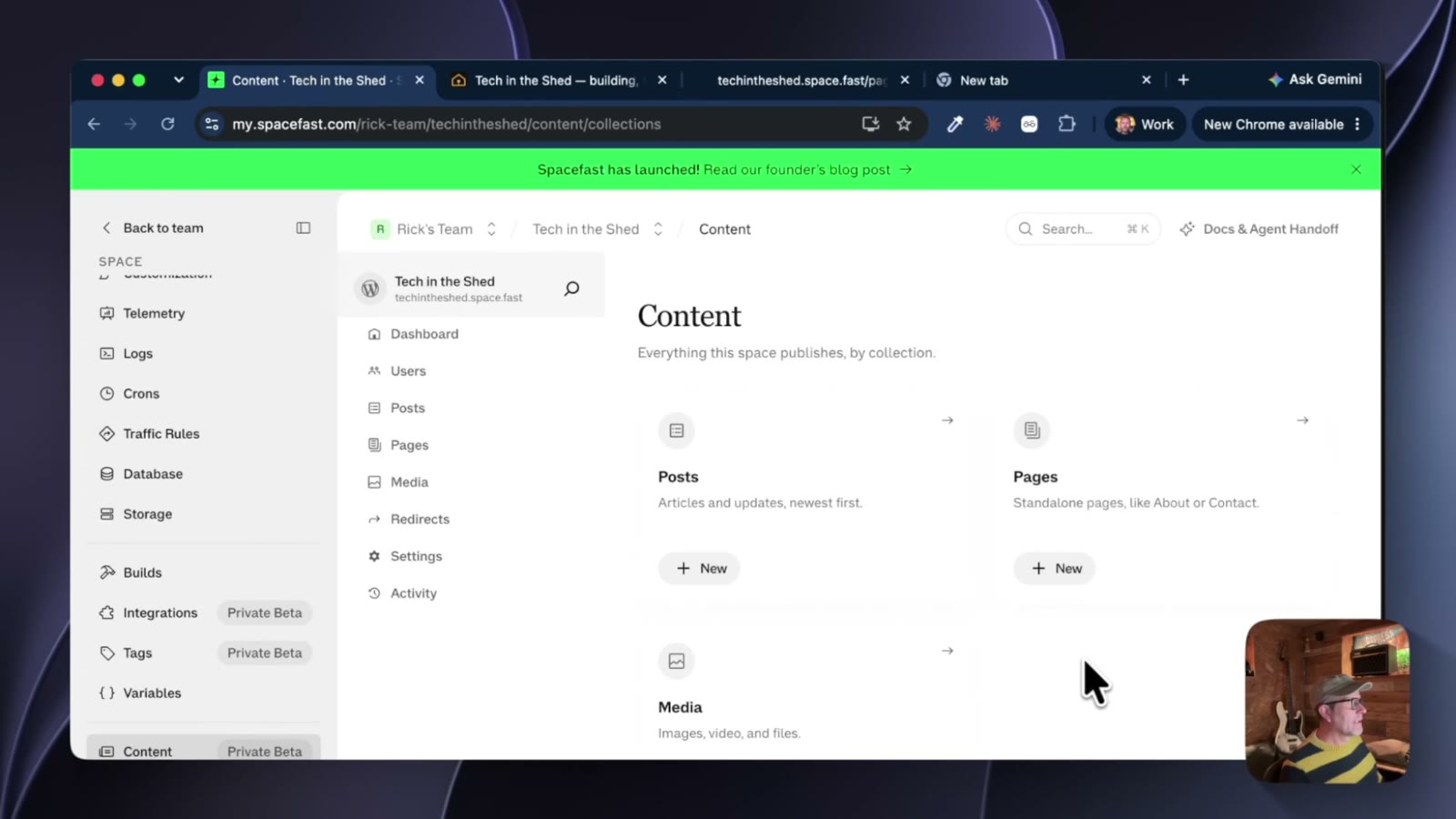
In the Spacefast dashboard there’s a Content tab with posts, pages and media, all driven by that WordPress instance. I’d already added a page there using the block editor, which is built in.
I took the static site from the first video and asked Claude to add an Experiments page which displays that WordPress page. The site stays static, with JavaScript pulling the content in. It was a fresh session, so I pointed it at the Spacefast llms.txt again, and went off to do something else.
The first interesting thing was Claude telling me that the live space already serves the WordPress REST API anonymously. I’d assumed it would only be available inside Spacefast, so I tried it in an incognito window, and sure enough, there’s a normal WordPress REST API at /wp-json/ just sitting there. My site was set to public while I was filming, so that’s expected, but it’s useful to know, and worth knowing if you didn’t mean to publish your content as JSON.
The page itself is a div with a data attribute, and a script that fetches the page by its slug. It’s the regular REST API, so the page can change without the site needing a rebuild.
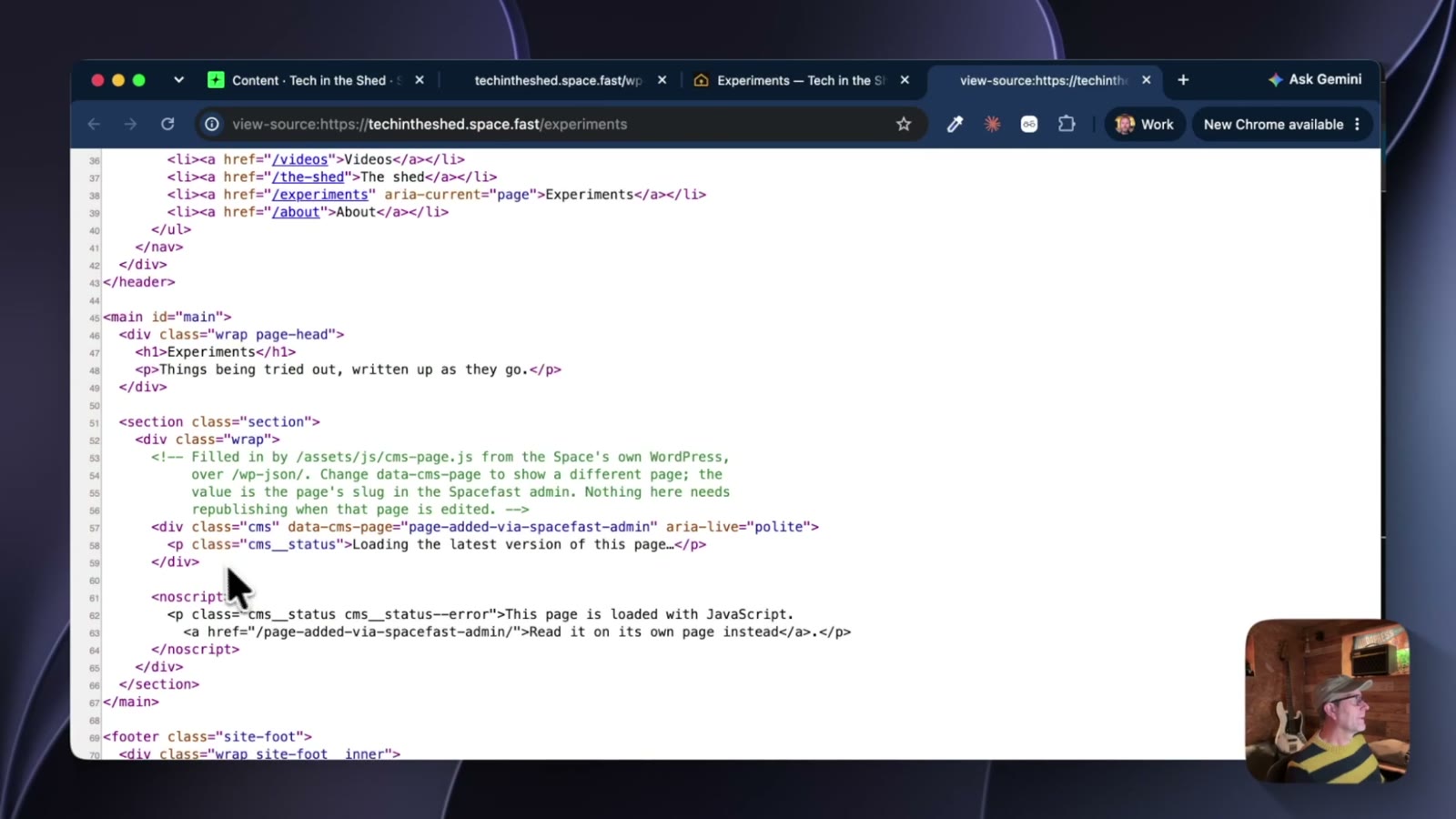
The catch with a JS-only technique like this is that if you view source, the content isn’t there. Some search crawlers and agent crawlers won’t see it. There’s a noscript fallback in there which claims you’ll be sent straight to the page if JavaScript is off, but when I tried it earlier I just got a blank page, so I wouldn’t rely on that. Handy for a mostly static site with a bit of dynamic content in it, but not what I’d choose if the content needs to be found.
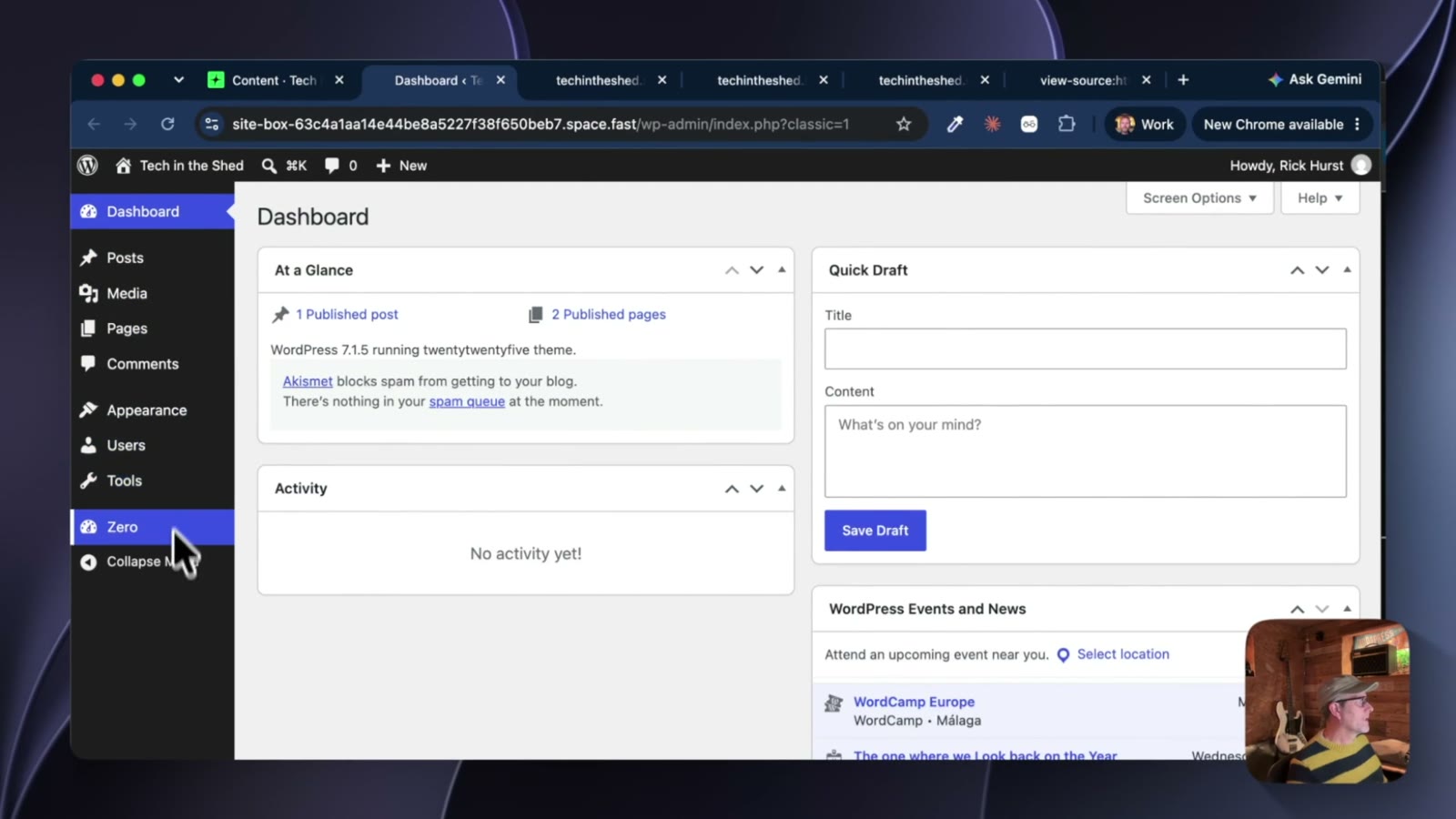
There’s also a classic WordPress dashboard hiding in the content settings, which opens full wp-admin. It’s real WordPress, but it isn’t an admin role, so you can’t install your own plugins, and I get the impression that’s going to stay that way. It’s there to let you use the content management features. I know custom post types are coming, as I’ve seen some work in that direction. For most people the cut-down version in the Spacefast dashboard would be enough, but if you want a fully content-managed site, this is the route.
Markdown in -> block editor -> markdown out
Another approach uses Markdown as a data source, something I’m trying ofr a project at work. Here the pages started off as Markdown files in a local project. When it was deployed, Spacefast brought them in as pages in the WordPress database, so I can edit one in the block editor.
When I save, that triggers a build, and the change is written back to the Markdown file in the source. That’s because I wanted the content to be proper HTML that search engines can read, rather than being displayed with JavaScript in the browser. It’s a bit clunky, with a build every time you save, but it gets you both. You could equally edit the Markdown on your own machine, deploy it, and it would be re-ingested and available in the editor.
I was suspicious about what would happen to anything more complicated than paragraphs, since it’s going from Markdown to block markup and back again. So I added a group with some columns in the editor and saved. When the build finished, I looked at the source, and the Markdown had kept it as block markup, which makes absolute sense. Markdown has no way to describe columns, so it just stores the blocks. The columns came through on the front end too.
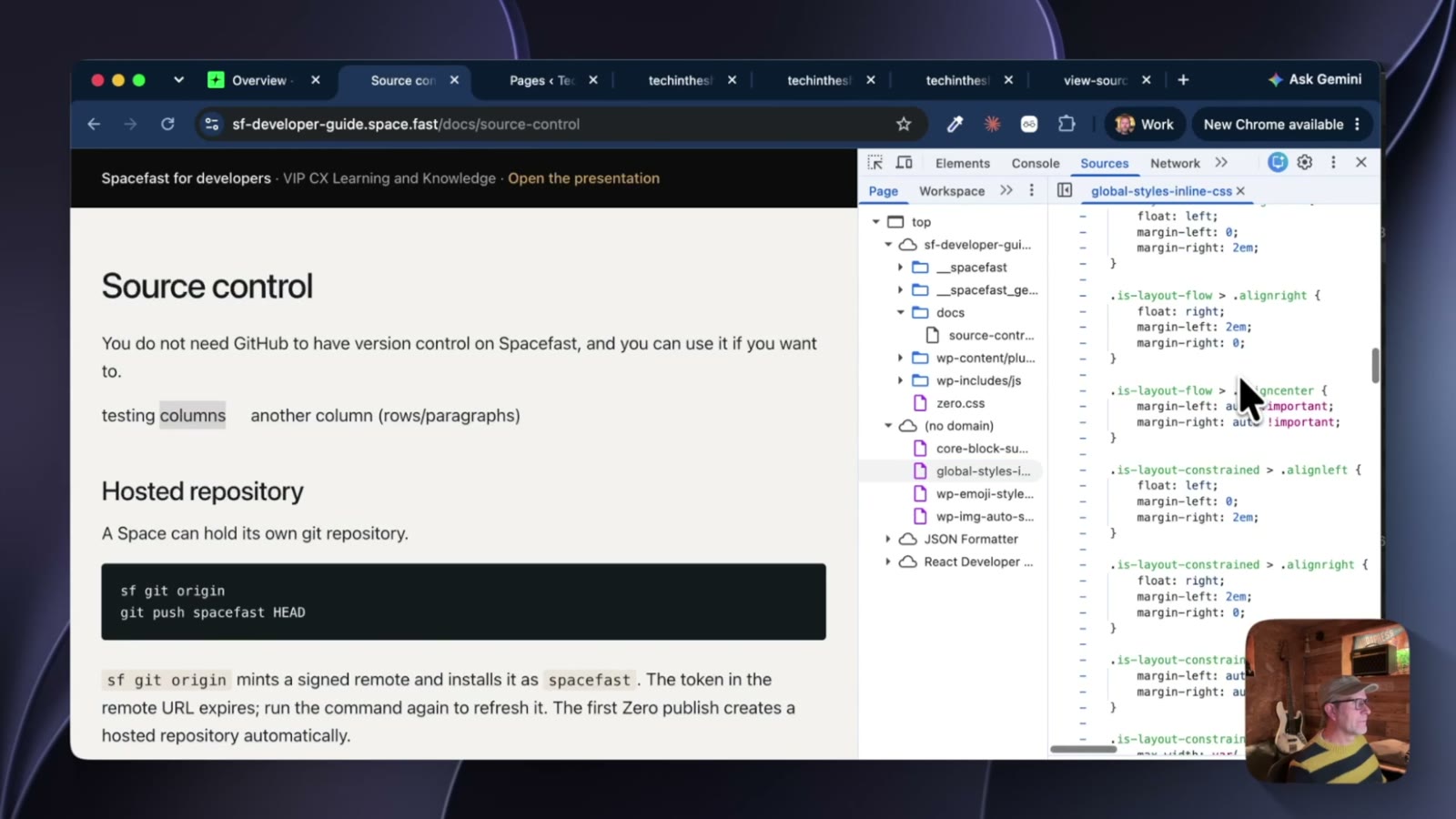
For something like a documentation site where you want Markdown files in a git repo, that seems to cover all the bases.
WordPress Studio, then publish it as a static site
The last one is the one I got most excited about, which throws the whole thing on its head. Instead of WordPress being behind the site, I’d rebuild the static site as a proper WordPress site in WordPress Studio on my laptop, then publish it back to Spacefast as a static site.
I connected my Claude account in Studio (off screen, since it throws secret tokens around), and tried to do it all inside Studio. That didn’t work out. I couldn’t attach a folder, only individual files, so I created a blank Studio site, and did the build part outside Studio, using Claude with the Studio CLI. I’d asked it not to build “blobs of custom HTML”, but to use proper WordPress features, and it took about eight minutes.
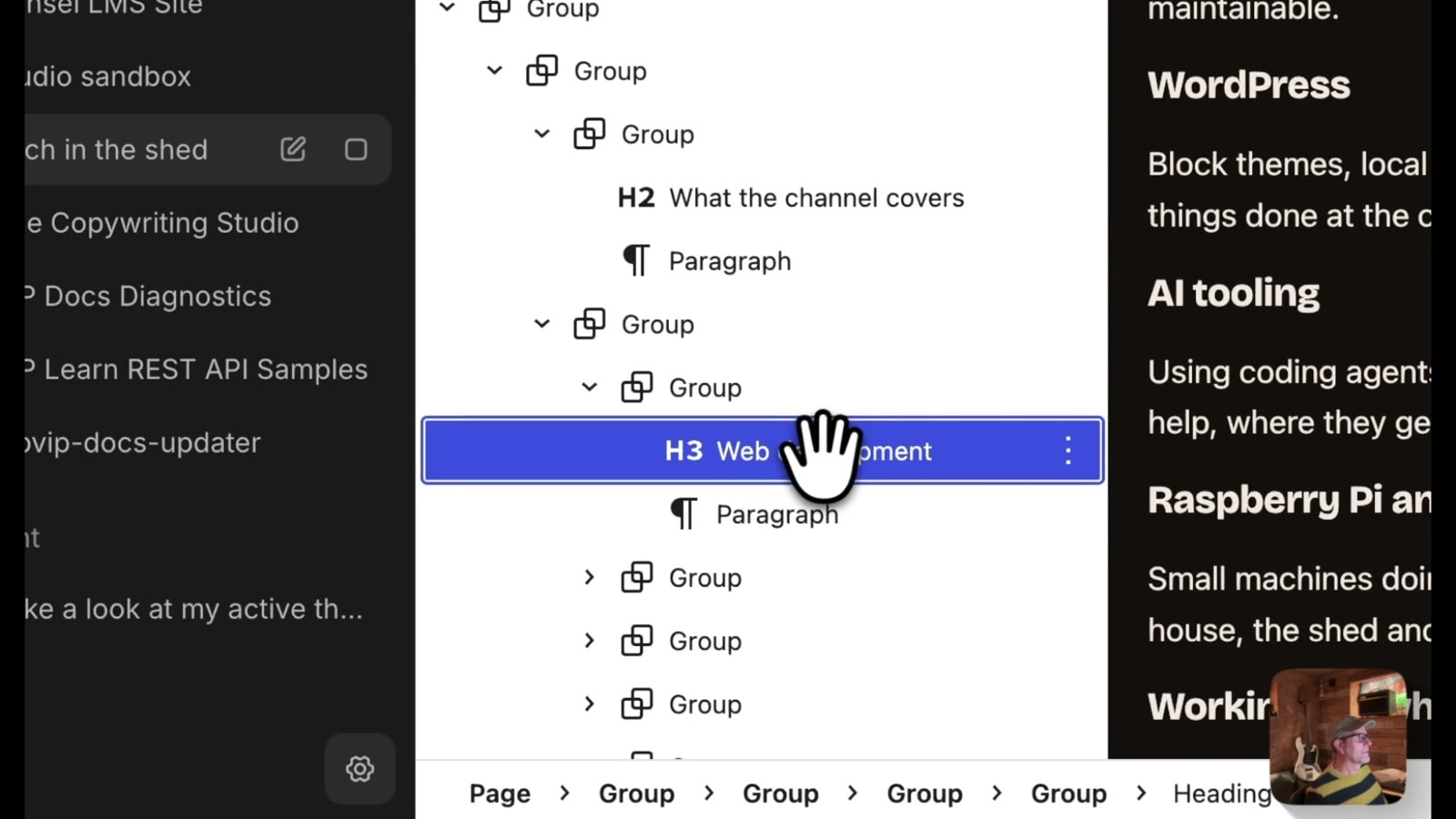
What came out is a fully block-based site, running locally and not published anywhere. Lots of groups, headings and paragraphs, and a group is basically a div for those of us who’ve hand-coded HTML. If I was working on this I’d quite like to work like this, locally.
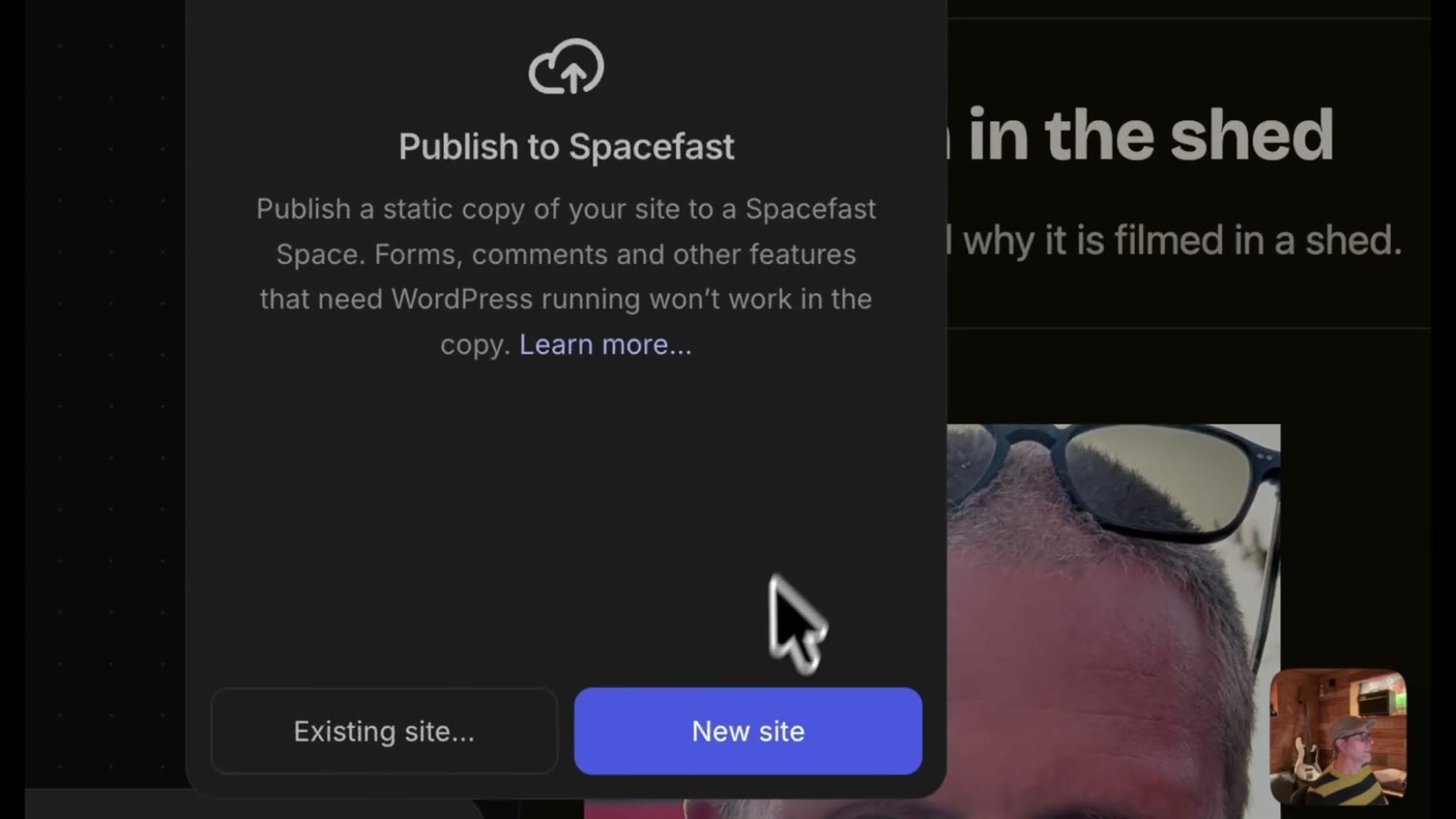
Then the bit I was after. Click Publish, pick Spacefast, choose a new site, and it goes to a new space. The dialog is clear that it’s a static copy, so forms, comments and anything else that needs WordPress running won’t work.
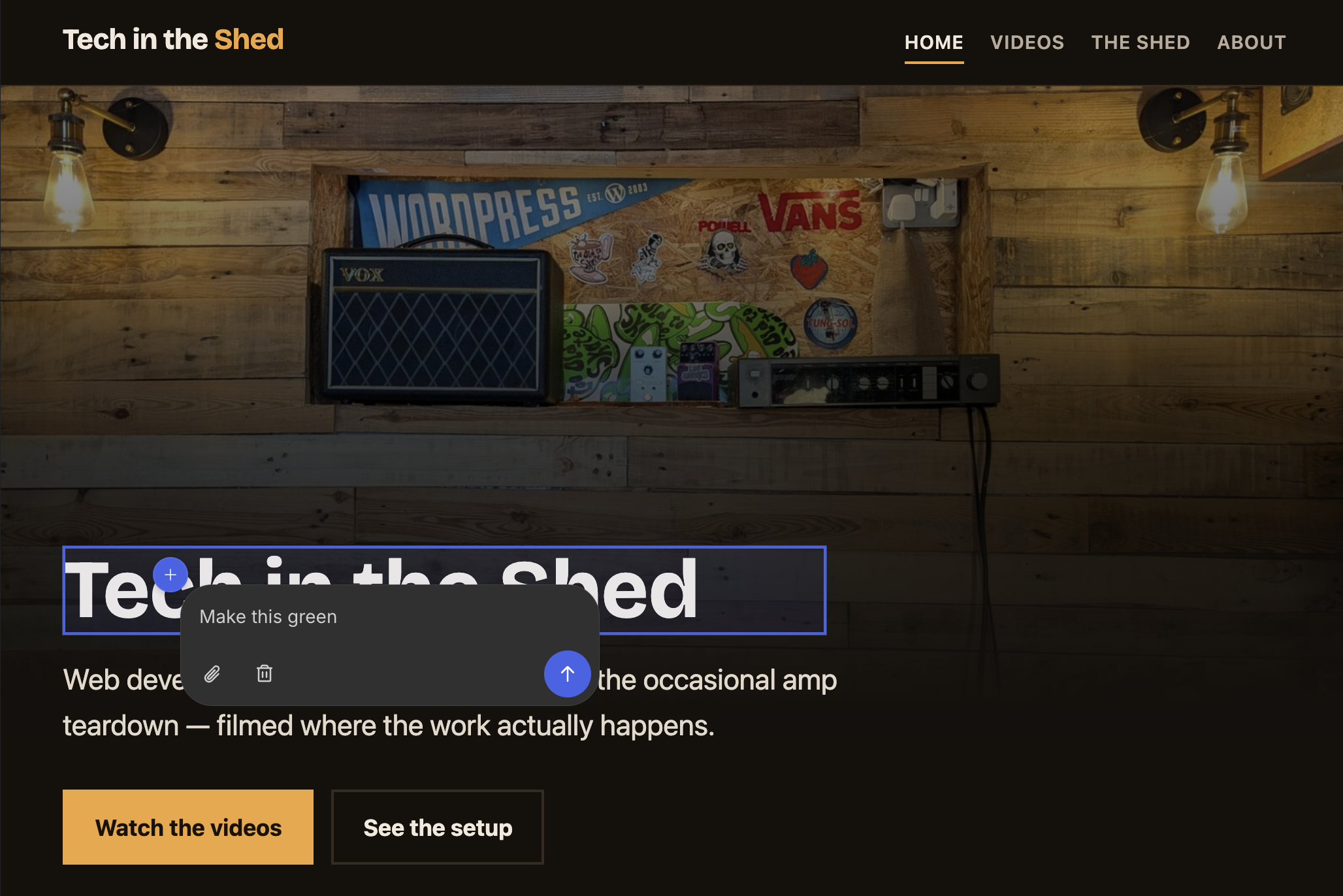
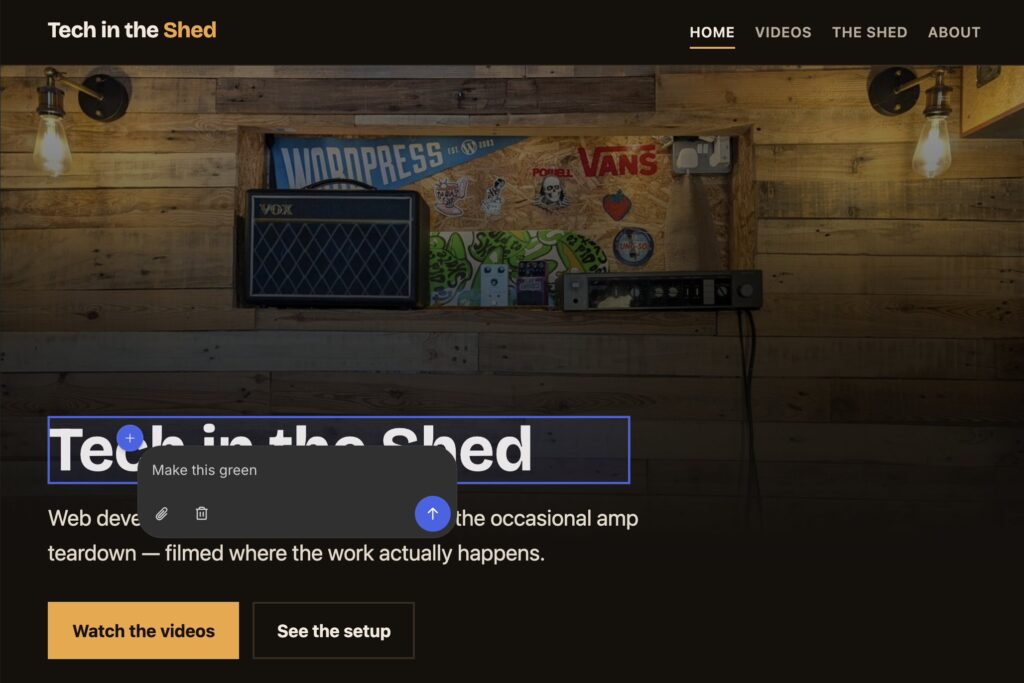
Studio also has a feature I’d only seen in someone else’s video. You point at part of the page and describe the change. I asked it to make the heading green, a few random things happened, but it did it. Publish changes again and it’s live.
Takeaways
- There isn’t one way WordPress and Spacefast work together. There are several – way more than I’ve demonstrated here – and you can mix them or ignore WordPress completely.
- The WordPress REST API on a public space is open by default. Useful, and worth knowing about.
- Pulling content in with JavaScript is quick and easy, but it isn’t in the page source, so some search engines and agent crawlers won’t see it.
- If you want the content in the HTML, the Markdown route does that. It’s clunky, with a build every time you save, but it covers all bases, and columns and groups survived the round trip.
- Working locally in Studio and publishing a static site is how I’d like to work. Although I did have to go outside Studio to get the site built in the first place.
I hope that hasn’t made things more confusing. It’s a private beta, so check what’s changed before you try any of it!