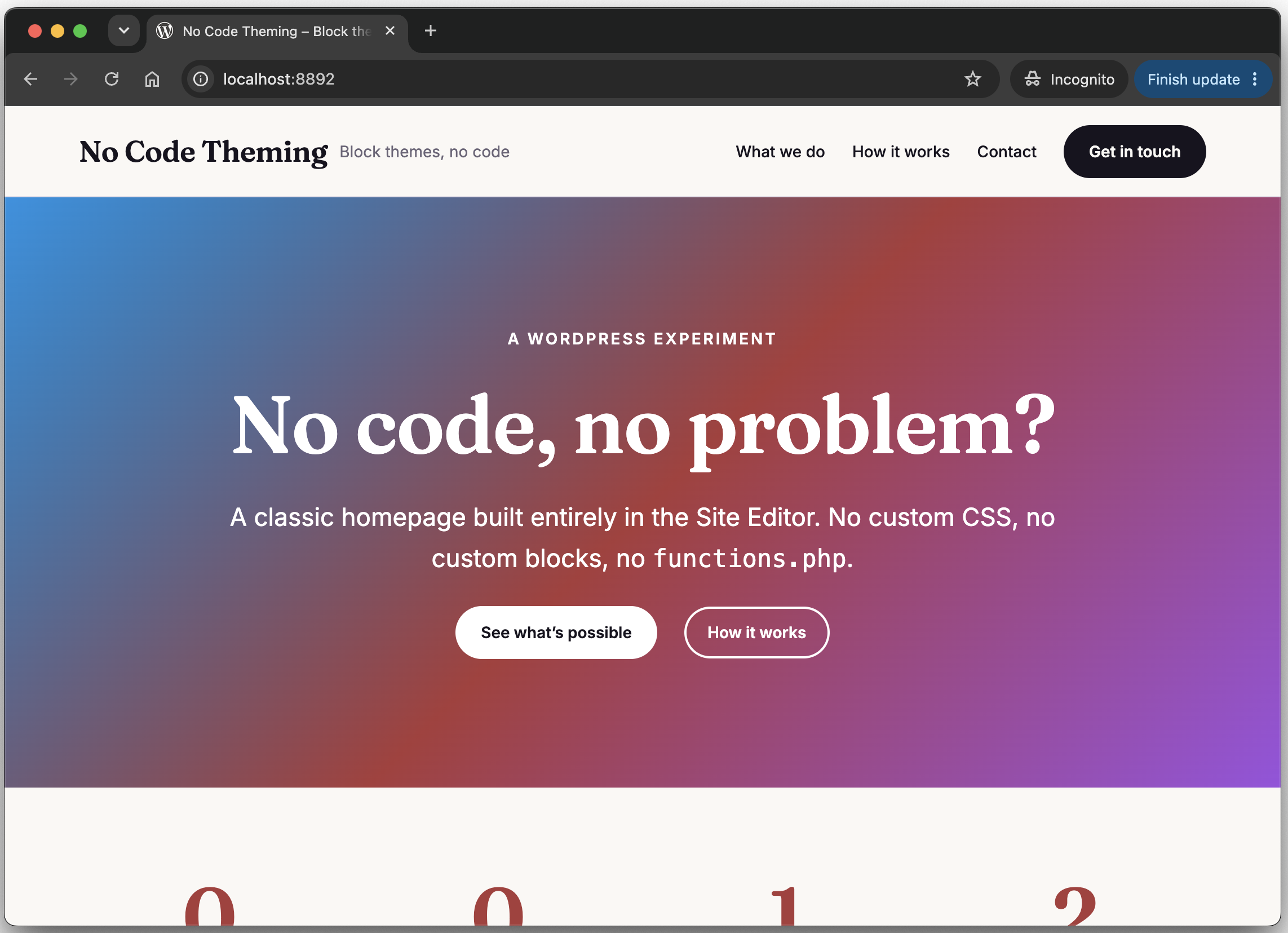
At the recent Bristol WordPress Meetup, I got chatting to someone about the Site Editor. I tried to explain that you don’t necessarily need to build a theme for a new WordPress site because you can design and style the whole thing in the editor. Then they asked a few follow-up questions, and I realised I didn’t know the answers to all of them, such as “Is the CSS based on something like Bootstrap or Tailwind?” and “Where does the compiled CSS end up?”.
So I decided to find out properly. Building a WordPress theme used to mean a folder full of PHP templates, a functions.php and a folder full of handcoded SASS files and built CSS files. These days you can, in theory, build a whole theme in the Site Editor without writing any code at all. I wanted to see how far you can actually get with a classic-looking homepage (header, hero, a row of three cards, footer) without adding any custom CSS or custom blocks. More importantly, I wanted to understand where all the styling ends up when you do, because “no code” doesn’t mean there’s no code, it just means you didn’t write it.
The plan: run up a local site with the Studio CLI, create a blank theme, build the homepage, keep looking at the page source to see where each bit of styling lands, and then work out how you’d share the finished theme with someone else.
Running up a Studio site
The Studio CLI makes this quick:
studio create --path ~/Studio/no-code-theming --name "No Code Theming"
That gave me WordPress 7.1.3 on PHP 8.4 at http://localhost:8892, with an admin login printed in the terminal.
Getting a blank theme
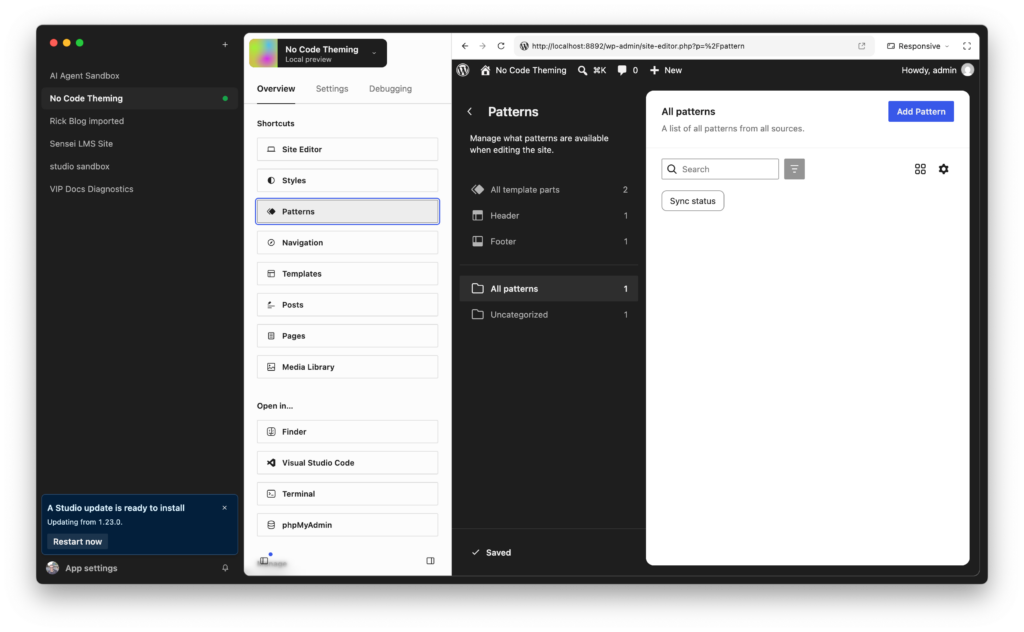
You do need a theme for the Site Editor to work on, but it can be almost empty. I used the Create Block Theme plugin, which is maintained by WordPress contributors. It can create a blank theme for you, and (this turned out to be the important bit) it can also save your Site Editor changes back to the theme’s files and export them as a zip. That’s what answers “how do I share this?”, which I’ll come back to.
cd ~/Studio/no-code-theming
studio wp plugin install create-block-theme --activate
Create Block Theme (version 2.10.2 at the time of writing) has no WP-CLI commands of its own, so the next bit is clicking: Appearance → Create Block Theme → Create a new Blank Theme, give it a name (“No Code Demo” in my case) and it creates the theme and activates it straight away.
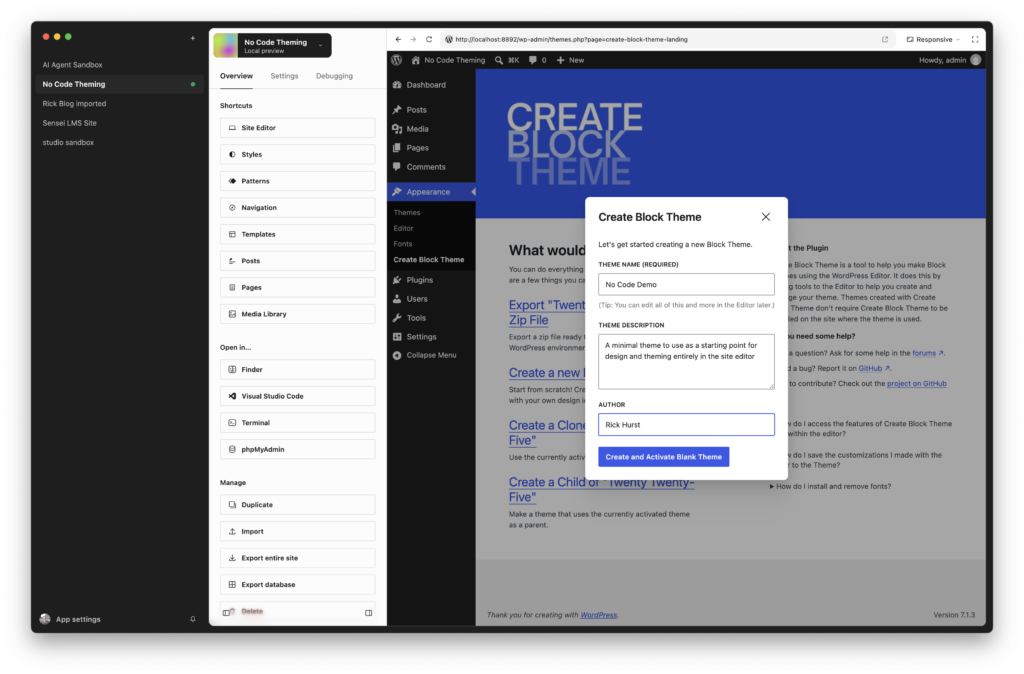
While I was at it I created a page called “Home” and set it as the homepage under Settings → Reading. I really wish WordPress did this by default. I’d be surprised if most people in 2026 use WordPress with the homepage as a list of blog posts rather than a proper homepage.
What’s actually in a blank theme?
Not much, which is the point:
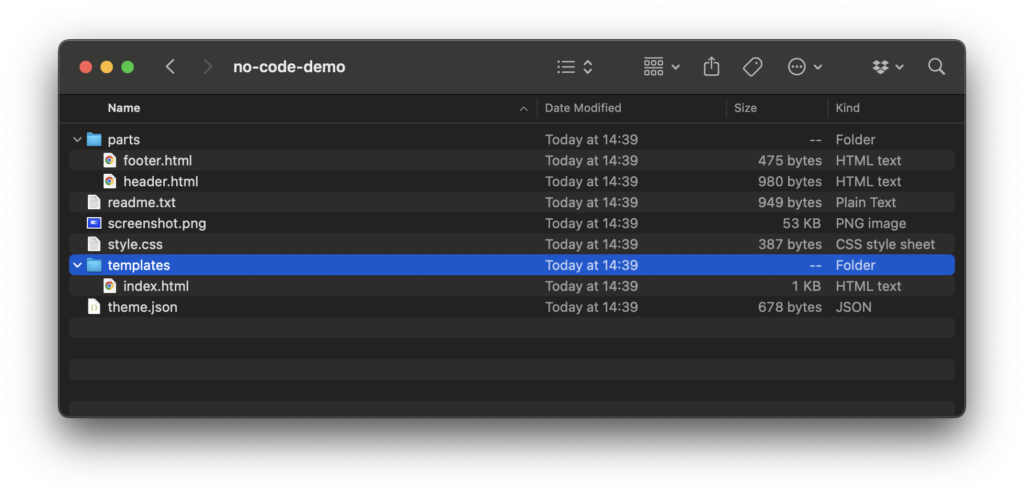
style.css, which is just the header comment with the theme name and author. There are no CSS rules in it, and a block theme without afunctions.phpnever loads it on the front end anyway. (Mine also claimedRequires PHP: 5.7, a version of PHP that never existed.)theme.json(version 3) with asettingssection only: content width 620px, wide width 1000px, a system font stack andappearanceTools(which turns on the border, spacing and other design controls in the editor). There’s nostylessection and no colour palette.templates/index.html, which has the header, a query loop and the footer.parts/header.htmlandparts/footer.html.- A
readme.txtand ascreenshot.png.
It’s worth comparing that with Twenty Twenty-Five, which is what you get in a fresh install. On the same site it has 8 templates, 7 template parts, 98 patterns, 8 style variations, 9 bundled font families and styles for 29 blocks in its theme.json. Our blank theme has one template, two parts and no patterns at all, apart from the 11 that core registers itself (some query loop layouts and navigation overlays), plus whatever the inserter pulls in from the Pattern Directory. Twenty Twenty-Five gives you a lot to start from, but you then have to work out what you don’t want. Starting from blank means doing more yourself, but nothing in it is there by accident.
In the “olden days” of classic themes, the equivalent was _s (Underscores), the starter theme that most front-end developers who liked to build from scratch would begin with. The blank block theme is roughly the same idea. The difference is that with _s you’d then spend time deciding which Sass library to start with, or whether to stick with hand-coded CSS. Here you go straight into the block editor and start making design decisions in the Styles panels.
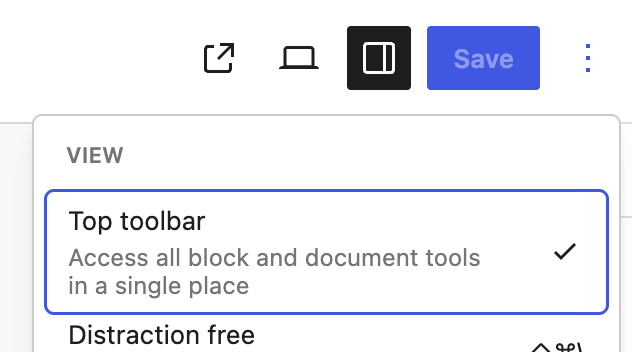
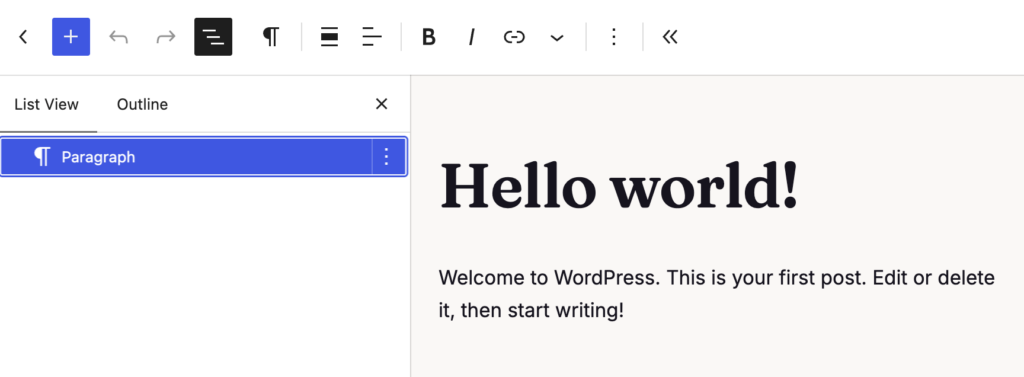
One more thing before I started clicking about in the editor. I always switch on Top Toolbar in the Options menu (the ⋮ at the top right), which docks the block toolbar at the top of the screen, so it isn’t floating around over the content in strange places.
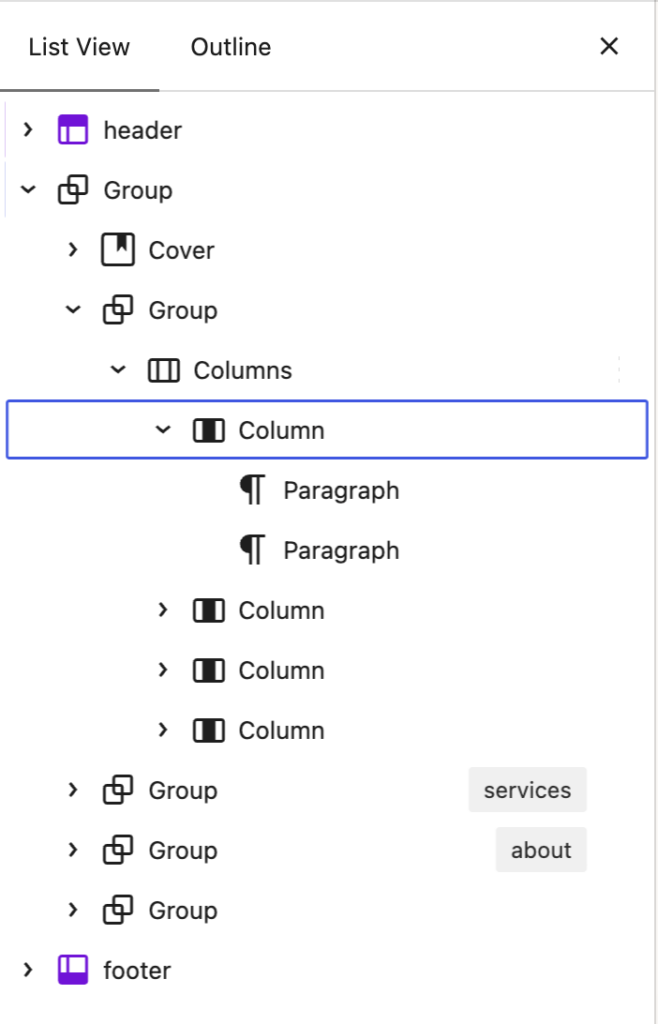
You’ll also want to select that “List View” button so you can see exactly which block is being edited.
So where does the CSS end up?
With the blank theme active, the homepage showed the site title, a menu listing every page (Sample Page included), “Home” with the author and date underneath like a blog post, and “Proudly Powered by WordPress”. The author and date are there because index.html is the only template, so the homepage is rendered with a query loop that was built for posts.
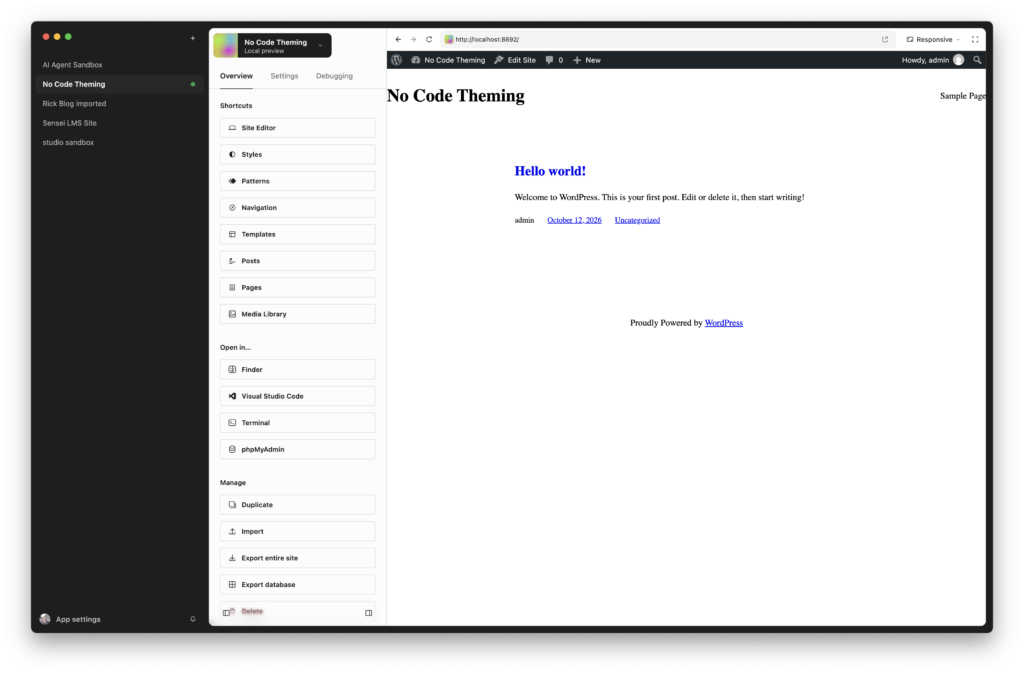
The interesting part was the page source. There wasn’t a single stylesheet <link> tag. All the CSS (about 43 KB of it) was inline in the <head>, in 17 separate <style> blocks:
- Per-block CSS (
wp-block-navigation-inline-cssand so on). WordPress only outputs the CSS for blocks that are actually on the page. Navigation alone accounted for about 21 KB. global-styles-inline-css, which is everything from theme.json merged together. It includes a CSS custom property for every preset (--wp--preset--color--vivid-redand friends), the layout rules (.is-layout-constrained, flex, grid, a 24px block gap), and utility classes like.has-vivid-red-color. Those colours come from WordPress core’s own theme.json, because our theme doesn’t define a palette.core-block-supports-inline-css, generated for individual blocks from their settings, such as.wp-container-core-group-is-layout-1abb9ae5{justify-content:space-between;}for the row in the header.- Inline
style=""attributes that are written into the block markup itself, like the header’spadding-top:30px.
So styling comes in layers. WordPress core’s theme.json provides the defaults, the theme’s theme.json overrides them, and anything you change in Styles in the Site Editor overrides both. On top of that, individual blocks can carry their own classes and inline styles.
Is this based on a CSS framework?
I wondered whether all these presets and classes come from an existing CSS framework. As far as I can tell, they don’t. It’s WordPress’s own system, which has grown up inside Gutenberg since around 2018, but it borrows quite a few familiar ideas:
- Presets are essentially design tokens, output as CSS custom properties with a fixed naming pattern (
--wp--preset--{type}--{slug}). - The
has-*classes are utility classes, a bit like a tiny Tailwind, but they only exist for presets. Custom values go inline, which is why they can’t be reused. - Block class names are BEM-style (
wp-block-cover__inner-container), with SMACSS-styleis-andhas-state classes. - The layouts look a lot like the patterns in Every Layout. The spacing between blocks is the “lobotomised owl” (
> * + * { margin-block-start: … }), and the Grid layout uses therepeat(auto-fill, minmax(…, 1fr))pattern. Columns, on the other hand, is plain flexbox with percentage widths, not a 12-column grid like Bootstrap.
The detail I liked most is that core’s theme.json doesn’t actually list the spacing values. It generates them as a modular scale: start at 1.5rem for step 50 and multiply or divide by 1.5 for each step either side, which gives 0.44, 0.67, 1, 1.5, 2.25, 3.38 and 5.06rem. The default colour names and font sizes, on the other hand, aren’t based on anything in particular. They’re just what the core design team chose, and they’ve stayed the same for backwards compatibility, which is why “medium” is a slightly odd 20px.
Settings make things available, styles apply them
This caught me out twice. The blank theme registers a system font under settings, but nothing under styles actually applies it. So the font’s CSS variable exists, but nothing sets font-family on the body, and the whole site was rendering in the browser’s default serif font.
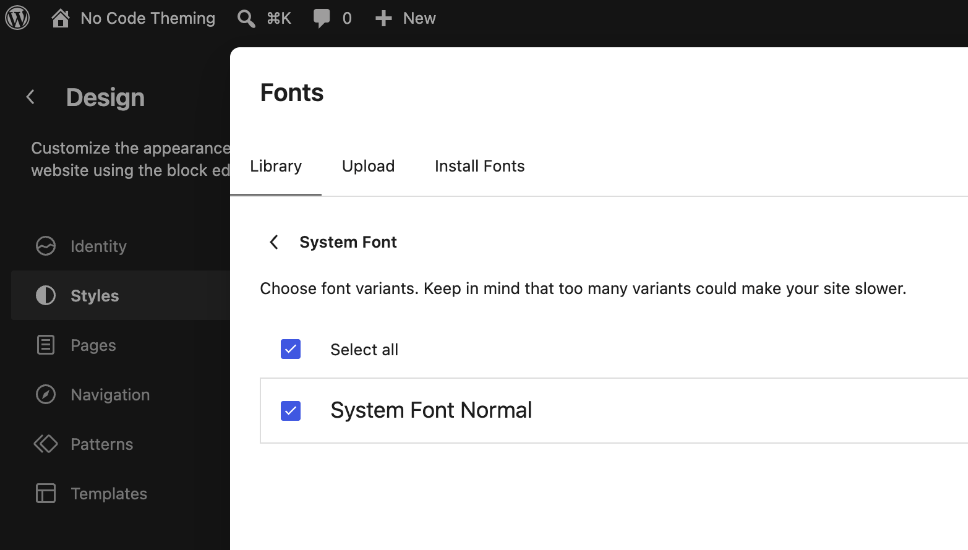
The second time was in the Site Editor. Under Styles → Typography, the Fonts section at the top lists the fonts that are available (in other words, settings). Choosing one there doesn’t apply it to anything. You apply a font under the Elements below it (Text, Headings, Links and so on), which corresponds to styles. Once you know that distinction, a lot of theme.json makes more sense.
Nothing happens until you click Save
The next step was to choose a font and some colours in Styles, and create a template for the homepage with Templates → Add New Template → Front Page. Here’s something that confused me for a while: adding the template creates an empty record in the database straight away, but your Styles changes and any blocks you add aren’t stored until you click Save. The save panel then lists everything you’ve changed, each with its own checkbox, so you can save some changes and not others.
After saving, I looked at where everything had gone. The Styles changes are in a post of type wp_global_styles, and the content looks like this:
{
  "styles": {
    "color": { "text": "var:preset|color|black" },
    "elements": { "link": { "color": { "text": "var:preset|color|vivid-cyan-blue" } } },
    "typography": { "fontSize": "var:preset|font-size|medium" }
  },
  "isGlobalStylesUserThemeJSON": true,
  "version": 3
}
That’s theme.json, stored in the database. It has the same structure, just in a post instead of a file. var:preset|color|black is theme.json shorthand for a preset, and WordPress turns it into var(--wp--preset--color--black) in the CSS. (A small catch: the core “Medium” font size is 20px, so my body text jumped from 16px to 20px. The preset names don’t tell you the actual size.)
The front page template is a wp_template post linked to the theme, and there’s still no templates/front-page.html on disk. The editor had also tidied up the markup when it saved it, by adding a "theme" attribute to the template parts, changing a spacer’s 40 to "40px" and so on. So what comes back from the database isn’t byte-for-byte what the theme shipped with.
Building the homepage
I deleted the query loop from the front page template and built the page from core blocks only:
- A full-width Cover block for the hero (to which I added a blue-to-rust-to-violet gradient), with a heading, a paragraph and a button.
- A Columns block with three cards, each with a background colour, rounded corners, padding, a shadow and an outline button.
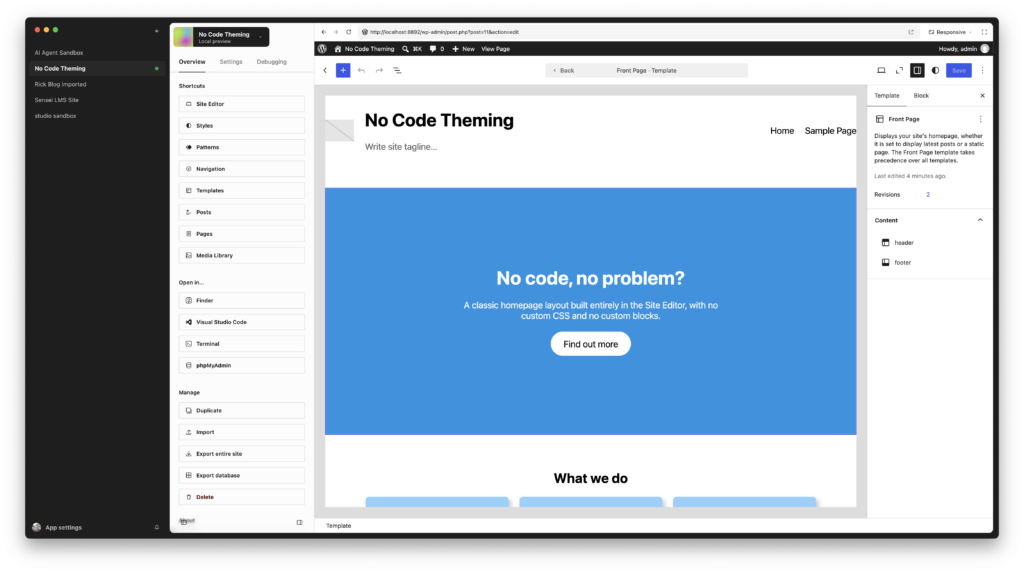
For a developer, building a page this way feels surprisingly familiar. Groups, Columns and the padding and margin controls are really just an abstraction of what we’ve always done: nest some divs, then write CSS classes to lay them out and style them. The difference is that you set the layout and spacing on each block in the sidebar, rather than switching to a stylesheet.
This is where it gets interesting, because the same page ends up styled in several different ways depending on which control you used:
| What you set in the editor | What ends up in the HTML | Where the CSS comes from |
|---|---|---|
| A colour from the palette | a class like has-pale-cyan-blue-background-color | global-styles, as a utility class pointing at the preset variable |
| A preset font size | has-x-large-font-size | global-styles |
| Padding from the spacing scale, or a shadow preset | inline style="padding-top:var(--wp--preset--spacing--50)" | inline, but using a preset variable |
| A custom value (8px radius, 60vh height) | inline style="border-radius:8px" | only on that element |
| Layout options (centred buttons, a content width) | wp-container-core-buttons-is-layout-3e41869c | core-block-supports, with a hash generated when the page renders |
| A block style (the outline button) | is-style-outline is-style-outline--2 | its own <style> block, with one identical rule per button |
The main takeaway is that presets end up as CSS variables, while custom values are hard-coded into each block. If I change the pale blue in the palette, all three cards update. If I change my mind about the 8px radius, I’m editing every card by hand. So it’s worth sticking to presets wherever you can.
The rendered HTML also contains things that aren’t in the saved template at all, such as the is-layout-* and wp-container-* classes, aspect-ratio:unset on the Cover, and an id on <main> for the skip link. They’re added when the page is rendered.
Wait, why is there a stylesheet link now?
The other surprise: after adding the Cover block, the first external stylesheet appeared, and it was for Navigation, which hadn’t changed. WordPress inlines block CSS up to a total budget (40,000 bytes by default since WordPress 6.9, up from 20,000, and adjustable with the styles_inline_size_limit filter), starting with the smallest stylesheets. It all happens in wp_maybe_inline_styles() in script-loader.php, which sorts the stylesheets by file size and inlines them one by one until the next one wouldn’t fit. When the Cover block’s 20 KB took the page over the budget, the next biggest stylesheet, Navigation at about 21 KB, was moved out to a <link> tag instead. So where a block’s CSS ends up depends on which other blocks happen to be on the page, which is the kind of thing that would confuse me during a performance audit if I didn’t know about it.
Going to town on the design
With the basics worked out, I pushed the design further to see what’s possible while still not writing any CSS:
- Fonts: I installed Inter and Fraunces from the Font Library’s Google Fonts collection (Styles → Typography → Fonts). WordPress downloads the font files to
wp-content/uploads/fonts/, so they’re served from your own site rather than from Google. - A custom palette built around the hero gradient: Ink, Paper, Mist, Line, Muted, Blue, Rust and Violet.
- The hero gradient saved as a preset (“Sunset”), so the Cover uses a variable instead of a hard-coded
linear-gradient(). - A custom shadow, and a set of fluid font sizes from Small to Display.
- Site-wide styles: Paper background, Fraunces headings, Inter body text, pill-shaped buttons, links in Rust that turn Violet on hover, and some root padding so the site title doesn’t sit right against the edge of the window.
- Styles for individual block types under Styles → Blocks: Site Title, Tagline, Navigation, and Quote (with a violet left border).
- A new header and footer, edited in the Site Editor. These are saved as new
wp_template_partposts, and the theme’s ownparts/*.htmlfiles are ignored from then on. - A synced pattern for the “Your turn” call to action in the footer.
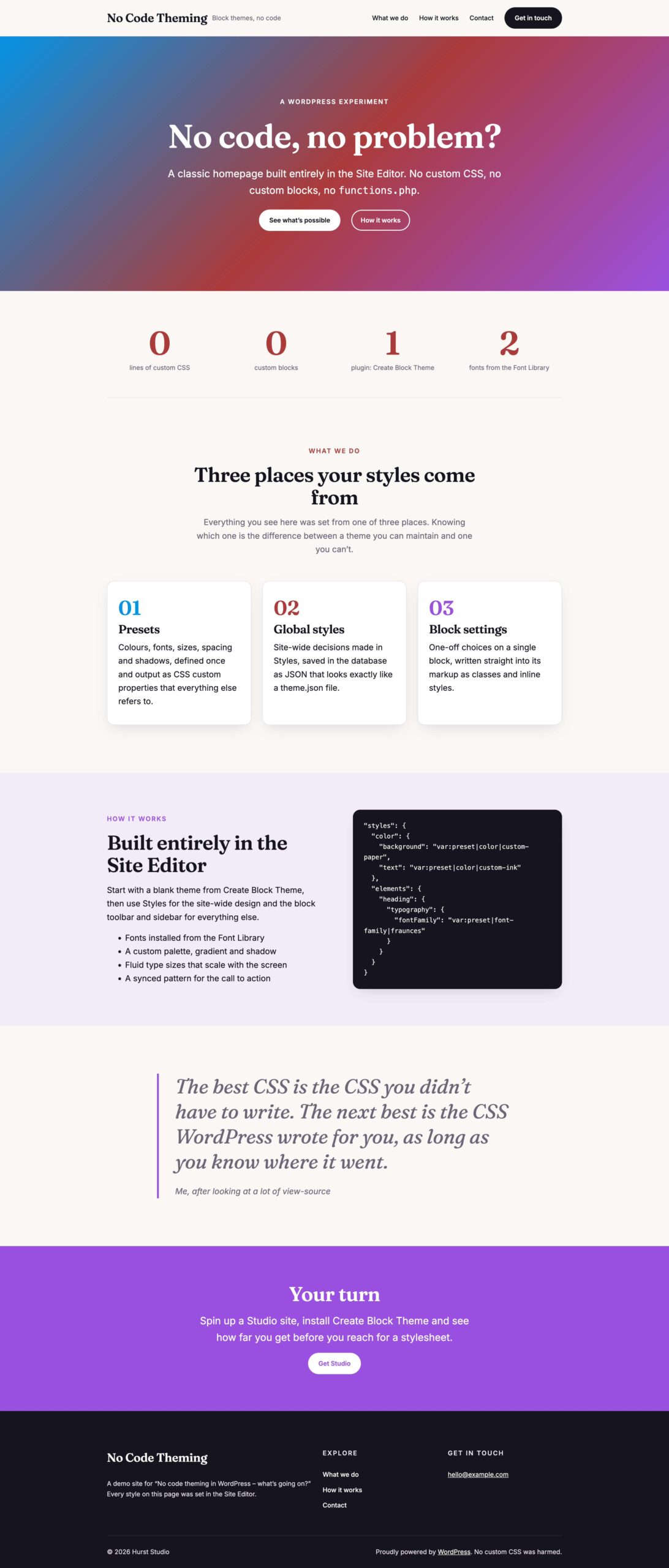
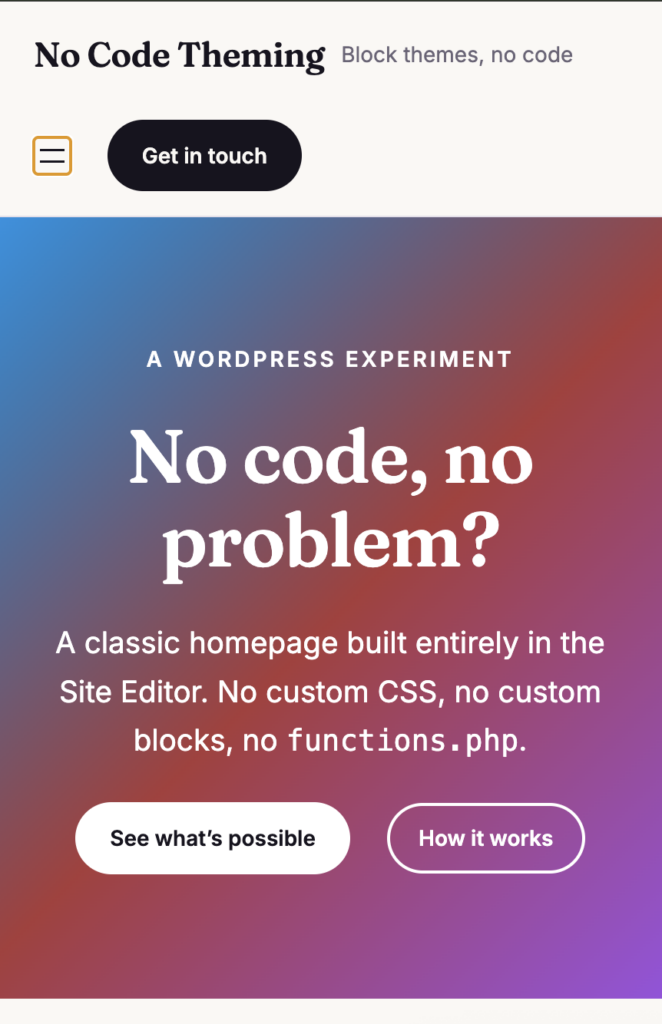
In the page source, the fonts appear as a <style class="wp-fonts-local"> block in the <head>, with one @font-face rule for each weight I installed. The custom presets become CSS variables just like core’s (--wp--preset--color--custom-rust and so on). The fluid sizes come out as clamp(), for example:
--wp--preset--font-size--custom-display: clamp(2.75rem, 2.75rem + ((1vw - 0.2rem) * 4.118), 4.5rem);
That’s responsive type with no media queries, without me writing any of it.
The styles for individual block types are wrapped in :where(), as in :root :where(.wp-block-quote){border-left-color: …}. That gives them zero specificity, so anything you set on an individual block always overrides them. A link colour on one specific block produces a numbered class (wp-elements-1) with a matching rule. The synced pattern renders with no trace of where it came from.
By the end, the page had about 61 KB of inline CSS in 21 <style> blocks (plus that Navigation stylesheet), 30 inline style="" attributes and 140 has-* utility classes. I haven’t compared that properly with a hand-written theme, but it’s not a lot for what you get. [Rick: your view on this, if you have one?]
Where it falls short
I did run into a few limits along the way:
- You can’t remove the bullets from a List block. My first go at the footer links was a list, and the bullets stayed. The no-code fix was to use a vertical Navigation block instead, which has the bonus of reusing the same menu as the header.
- Quote typography applies to the citation as well. I set big italic Fraunces on the Quote block in Styles → Blocks, and the citation came out just as big. theme.json can style
citeseparately, but the Site Editor doesn’t have a setting for it, so I put the large type on the paragraph inside the quote instead. - There’s a gap above the footer. WordPress adds the root block gap (24px) above the footer template part, and template parts have no margin setting. I ended up putting the call to action inside the footer part, in a Group with no block gap.
- There’s no reusable “card” style. All three cards repeat the same background, border, radius, padding and shadow. The tidy way to do this would be a custom block style variation, but you can’t create one in the Site Editor; that needs theme.json or a bit of PHP. Without code, the options are copy and paste or a pattern.
- Contrast. White text on the blue end of the gradient is only about 3.4:1. That’s fine for a big heading, but borderline for the paragraph underneath.
None of those were showstoppers, but each one is a place where a developer would just write two lines of custom CSS (but then it wouldn’t be “no code”).
Everything is in the database – how do I share it?
This is the part of the post I actually wanted to get to. At this point the whole design existed in this one site:
- the
wp_global_stylespost (palette, fonts, sizes and styles) - the
wp_templatefront page - two
wp_template_partposts (header and footer) - a
wp_navigationpost (the menu) - a
wp_blockpost (the synced pattern) - 2 font family and 8 font face posts, plus 8 font files in
uploads - the tagline, which is a site setting rather than part of the theme
The theme folder hadn’t changed since Create Block Theme generated it. If I’d zipped it up and sent it to someone, they’d have got the blank theme.
That’s what Save Changes to Theme in Create Block Theme is for. You’ll find it in the Site Editor (with something open for editing): click the Create Block Theme icon in the top bar, or go to Options (⋮) → Plugins → Create Block Theme. It then gives you checkboxes for saving fonts, styles, templates and patterns, along with a few options for tidying up.
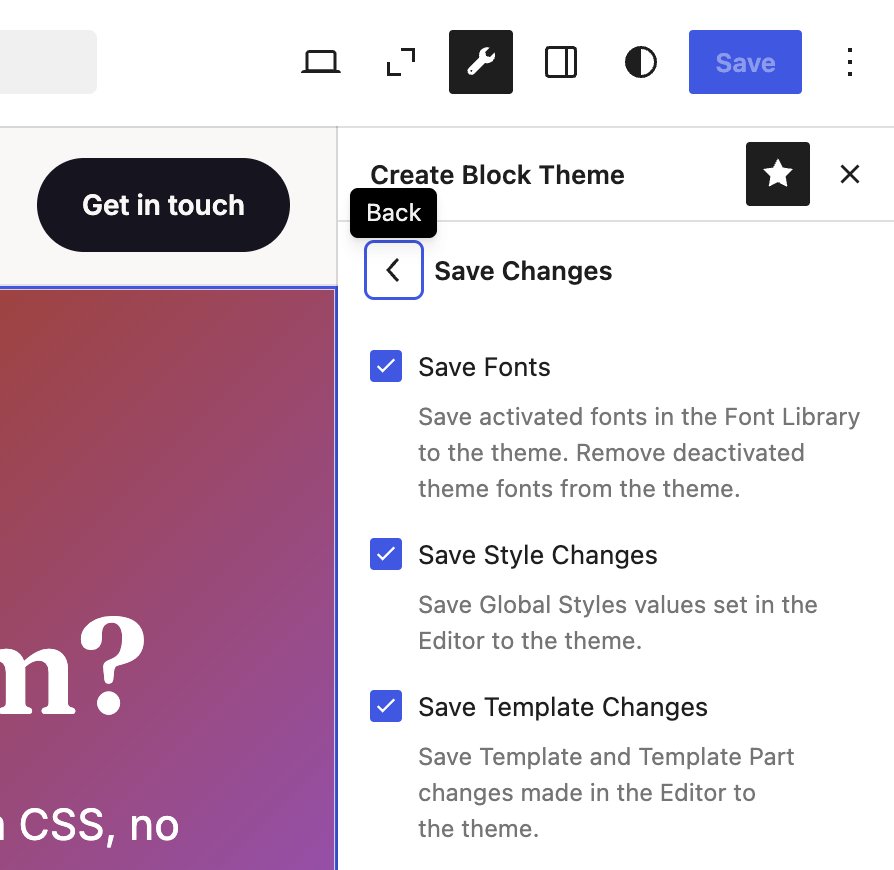
Afterwards, the theme folder looked very different:
theme.jsonwent from 678 bytes to 7.6 KB, and now has the palette, the gradient, the shadow, the fluid font sizes, both fonts and a fullstylessection, including the styles for individual blocks.- The fonts were copied into
assets/fonts/and are referenced asfile:./assets/fonts/…in theme.json. The front end now loads them from the theme rather than fromuploads. templates/front-page.htmlexists, andparts/header.htmlandparts/footer.htmlhave been overwritten with the new versions. The"theme"attribute was removed from the template part references, so they’ll work in a theme with a different name.- The synced pattern became a theme pattern in
patterns/call-to-action.php. So yes, a “no code” theme now contains a PHP file, even if it’s only a comment header in front of the block markup. - The global styles record in the database was emptied, and the template, template part and synced pattern records were deleted, so the theme files are now the only source.
A couple of things to watch out for, though:
- The footer’s call to action disappeared. More on that below.
- The menus still point at this site’s database. The header and footer Navigation blocks reference
wp_navigationpost 4, which won’t exist on anyone else’s site. There’s a “Remove Navigation Refs” option for that, but the menu items themselves live in the database either way, so they won’t come with the theme. - Files you didn’t touch can change.
templates/index.htmlwas rewritten with tidier JSON in its block comments, even though I hadn’t edited it. That’s harmless, but you’ll want to know about it before it shows up as a confusing diff in a pull request. - The original font records are still there. The font files are still in
uploadsand the font family and font face posts are still in the database, so you’ll have two copies until you remove them from the Font Library.
Where did my call to action go?
After saving to the theme, the violet “Your turn” section at the bottom of the homepage had gone. There was no error, just a gap where it used to be.
Here’s what happened. Ticking “Save Patterns” turned the synced pattern into a theme pattern (patterns/call-to-action.php) and deleted the wp_block post it came from. But the footer still referred to the deleted post with <!-- wp:block {"ref":27} /-->. On the front end, a reference to a pattern that no longer exists just renders nothing. In the Site Editor, opening the footer showed a placeholder that said “Block has been deleted or is unavailable.”
[screenshot: footer template part in the Site Editor showing “Block has been deleted or is unavailable.”]
The no-code fix:
- Open the footer (Patterns → Template Parts → Footer, or click it on the homepage) and select the broken block.
- Delete it, then open the inserter in the same place and go to Patterns. The theme’s “Call to action” pattern is listed under Uncategorized, because Create Block Theme saved it with an empty
Categories:header. - Insert it and save. Because I’d edited the footer, that saved it to the database again as a new
wp_template_partpost. - Run Save Changes to Theme again, which writes the fixed footer back to
parts/footer.htmland removes the database record.
[screenshot: inserter → Patterns → Uncategorized, showing the Call to action pattern]
There’s a catch, though. Inserting a theme pattern from the inserter pastes in a copy of its blocks, so the call to action is now just ordinary blocks in footer.html rather than a reference to the pattern. If I edit patterns/call-to-action.php later, the footer won’t change. In the theme files, the way to keep it linked would be <!-- wp:pattern {"slug":"no-code-demo/call-to-action"} /-->, but you’d have to write that by hand, which goes against the whole point of this exercise. Here it’s only used in one place, so a copy is fine, but it’s worth knowing if you save synced patterns that you’ve used in several places.
Once the changes are in the files, there are a few ways to share them:
- Export Zip in the same Create Block Theme sidebar gives you a zip you can upload to another site.
- Put the theme folder in version control. For anything on WordPress VIP, this is the only route, because code is deployed from a GitHub repository and you can’t edit theme files on production. So the workflow is to design in a local Studio site, use Save Changes to Theme, review the diff (watching for the gotchas above) and commit. The catch is that Site Editor changes made on the live site go into its database, not into the repository, so you’ll need to decide who makes design changes and where.
- Ship the whole site rather than the theme, with
studio exportto a backup file, orstudio pushto a WordPress.com site, if you’re handing over a finished site rather than a reusable theme. - Save the styles as a style variation with “Create Theme Variation”. This saves the global styles as a JSON file in the theme’s
styles/folder, which is a nice way to offer a few looks in one theme.
Takeaways
- You can get surprisingly far with no custom CSS. A hero, cards, a split section, a styled quote, a proper footer, fluid type and self-hosted fonts were all possible from the Site Editor, using core blocks only.
- “No code” really means “code you didn’t write”. It ends up as inline
<style>blocks, generated classes and inline styles. That’s fine, as long as you know which control puts it where. - Use presets (palette, spacing scale, font sizes, shadows) wherever you can, so a change in Styles updates everything rather than leaving you to edit each block by hand.
- Until you use Save Changes to Theme, your theme lives in the database rather than in the theme folder, so check the diff before you share or commit it.
- Switch on Top Toolbar. You’ll thank me 🙂